To access and log in to your K12 School account, you’ll first need to open an internet browser. While there are several browser options available, we strongly recommend using Google Chrome for the best experience.
If you're using a loaner laptop, Google Chrome is already installed. If you're using a personal laptop and don't have Google Chrome yet, you can download it for free.
Finding Google Chrome on Loaner Laptop
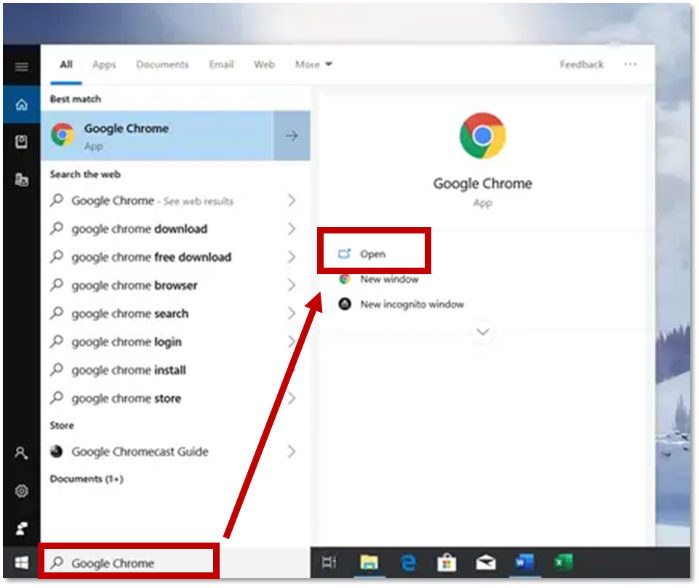
- Locate the search bar at the bottom of your student’s screen and type Google Chrome. When the app appears, click Open.
Download Google Chrome on Personal Laptop
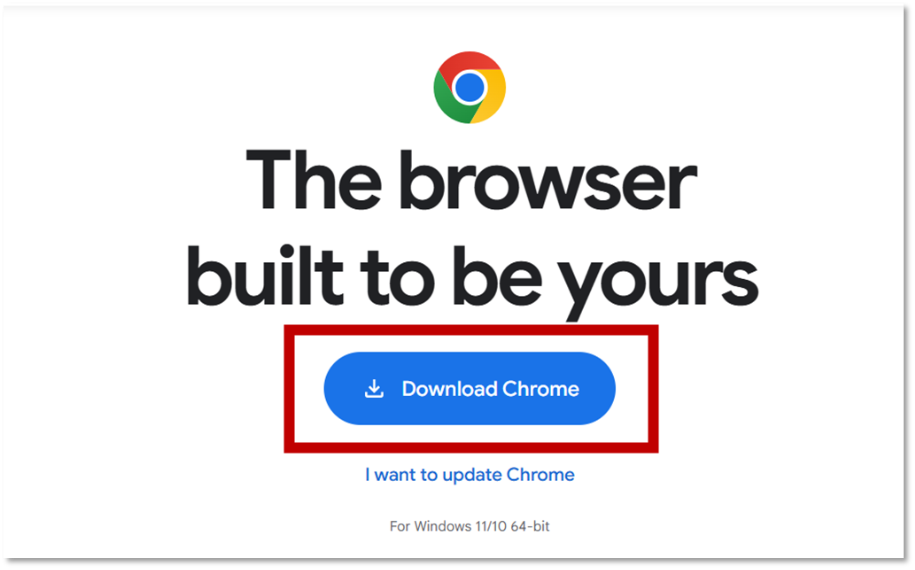
- Click HERE to open the Google Chrome website then click Download Chrome to start the free download.
- Once the download is complete, open the installation file and follow the on-screen instructions until the setup is finished. If you get the message "Do you want to allow this app to make changes to your device," select Yes.
Quick Tips
-
To ensure the best experience, we recommend updating your browser to the latest available version. Need help updating your browser? Learn more here.
-
Other browsers such as Microsoft Edge, Firefox, and Safari can be used for school, but they are not recommended. K12 School accounts work best on Google Chrome.


